
If you frequently record your screen on macOS—whether for product walkthroughs, coding tutorials, or online meetings—you’ve likely faced the nightmare of traditional audio routing.
For years, trying to record system audio and mic separately on mac felt like performing open-heart surgery. You had to install buggy third-party virtual audio cards, fiddle with Aggregate Devices in Audio MIDI Setup, and pray it wouldn’t crash during the next macOS update.
Today, thanks to the evolution of the native macOS framework, those tedious workarounds are a thing of the past. If you are looking for the best screen recorder for mac without virtual audio driver requirements, the game has officially changed. Modern screen recording is no longer about troubleshooting infrastructure; it’s about providing feature-rich versatility and absolute user control.
1. True Multi-Track Audio: Total Post-Production Freedom
Rather than forcing you to install background drivers, our tool fully leverages Apple’s native audio capture capabilities. This allows for seamless screen recording with separate audio tracks on mac. Your system audio and microphone inputs are captured as completely independent audio streams.
For content creators, educators, and game streamers, this means ultimate flexibility in post-production. When you drop your video into professional editing software like Final Cut Pro or Premiere, the tracks remain separate. You can easily lower distracting game audio or isolate your voice for advanced noise reduction without altering the computer’s internal sounds.
2. Six Capture Modes Tailored for Every Scenario
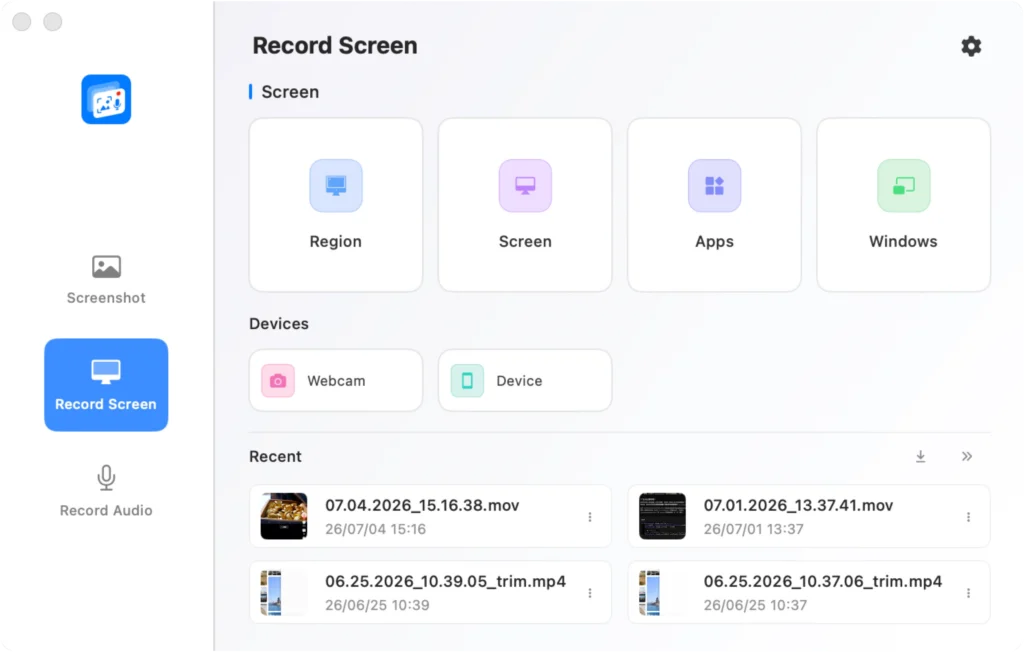
A professional workflow needs more than just a basic full-screen capture. To fit seamlessly into your daily tasks, we designed 6 distinct capture modes:
- Region Mode: Draw a custom cropping box anywhere to highlight exactly what matters.
- Full Screen Mode: Capture the entire desktop—perfect for comprehensive walkthroughs.
- Window Mode: Lock onto a single window. The recording frame tracks it dynamically even if you move it around.
- Application Isolation Mode: Want to isolate application window for screen recording mac style? Select one specific app to record. You can freely switch to Slack or open Finder in the background; your viewers will only see the selected app.
- Camera Mode: Use this as a high-quality screen recorder with iphone camera overlay by connecting your iPhone wirelessly via Continuity Camera for crystal-clear facecam footage.
- iOS/USB Mode: Plug in your iPhone or iPad via cable to mirror and record mobile screens with zero latency—ideal for mobile app developers.
3. Advanced Desktop Privacy Controls
Don’t waste time cleaning up your chaotic desktop before a presentation. If you’ve been wondering how to record screen without desktop icons mac users often struggle to hide, our built-in privacy settings let you instantly cloak your workspace with a single click:
- Hide the Menu Bar & Dock for a clean look.
- Hide all desktop icons instantly.
- Hide the mouse pointer when it’s not needed.
- Solid Background Replacement: Replace a distracting wallpaper with a professional solid color (like studio white or deep gray) for the duration of the recording, without altering your actual desktop settings.
4. Dynamic In-Recording Adjustments
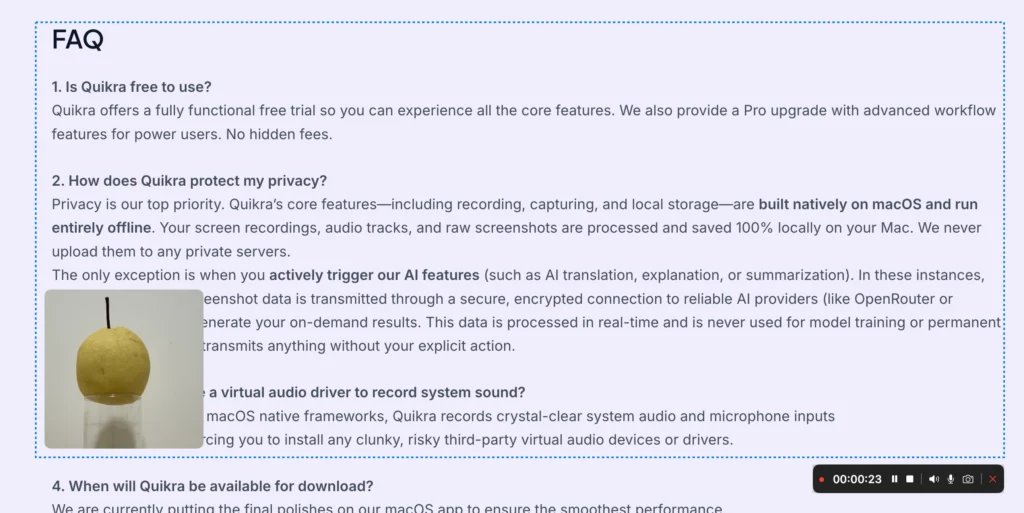
Not every recording follows a rigid script. Sometimes you need to adapt to unexpected situations on the fly. We provide dynamic mid-recording toggles that allow you to seamlessly turn on or off your system audio, microphone input, or camera overlays without stopping the clip.
Got interrupted? Pause and resume whenever you’re ready. Made a total mess of the take? Hit cancel to wipe it out instantly without hoarding junk files on your hard drive.
5. Record, Trim, and Share Instantly
Before you even hit the record button, you can configure your ideal output format right in the settings—whether that’s a lightweight MP4 for quick sharing, or a lossless MOV to perfectly preserve your isolated dual audio tracks. Once the recording is complete, there is no need to open heavy video editing software for quick fixes. The built-in player features multi-segment trimming, allowing you to seamlessly cut out mistakes and remove awkward pauses on a simple timeline. Since the video format was already predetermined in your pre-recording settings, your polished clip is instantly ready to go—allowing you to beam it to your own iPhone via AirDrop or share it directly with key people and teammates without a single hitch.